- Opero builds the folders — it reads each file and groups it by subject. You do not create folders yourself.
- Two clicks to the file — pick a category in the first column, narrow it in the second, and the file is in the third.
- A file can sit in more than one folder — a manual that covers four models shows up under all four.
A document library grows fast: manuals, drawings, specifications and reports. In one long list, search helps when you know what to type, but browsing is hard.
You can now browse documents in folders, and Opero creates the folders for you.
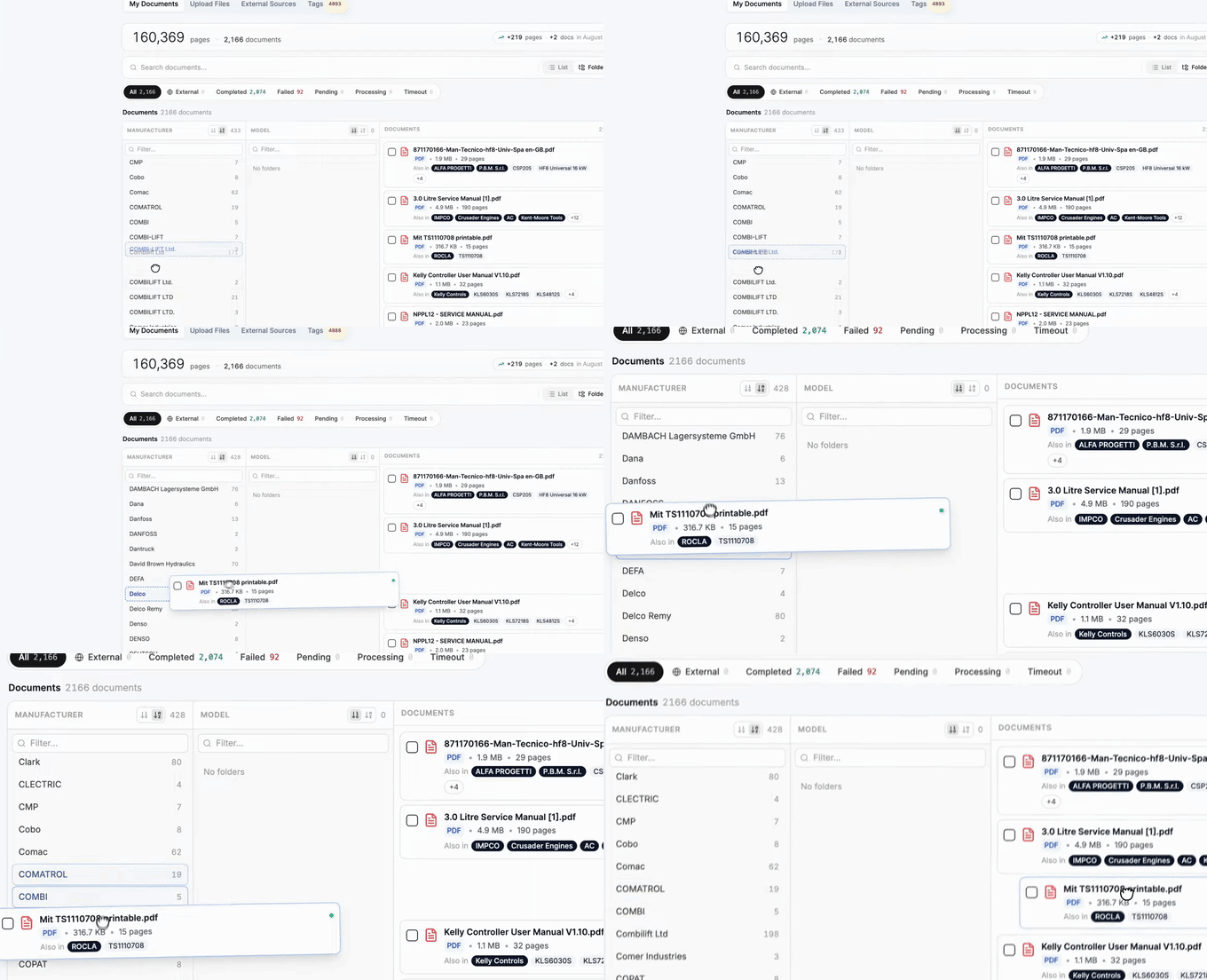
A file is dragged from one folder to another. Watch the full video on YouTube.
Opero creates the folders from your files
Opero reads every document you upload and works out what it is about. For a service team that is the equipment brand and the model. For a legal team it is the counterparty and the contract type. In engineering, the product line and the component.
Opero uses those details as folders. Your team does not need to design a folder structure or file every new upload by hand.
Narrow the list in two steps
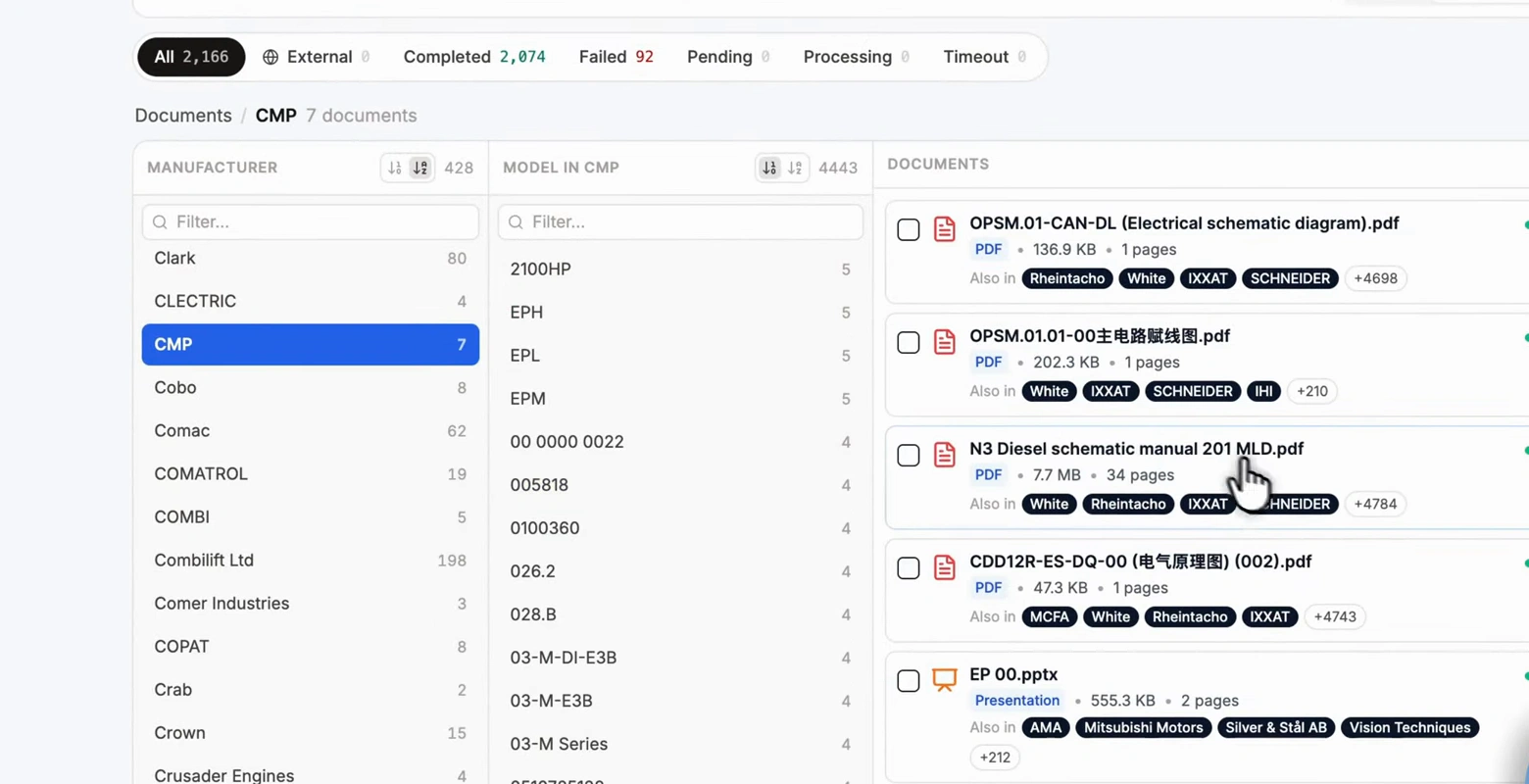
The first column shows a broad category. The second makes it more specific. The matching files appear on the right.
In the picture, that is manufacturer then model. Click a manufacturer and the second column fills with only its models. Click a model and you are down to a handful of files. A count sits next to every folder, so you know what you are about to open.
Each column also has a filter. Type a few letters to shorten a long list.
A breadcrumb across the top shows where you are. Click any part of it to go back up.
A file can live in more than one folder
One document may belong in several places. A manual might cover four models, or a contract might cover three products. Opero shows the same file in every relevant folder.
Under each file name, the Also in labels show every other folder that contains the file.
Drag a file to move it

If a file is in the wrong place, drag it to the right folder. Opero asks you to confirm the change first, so an accidental drag does no harm.
Rename in place, merge by dropping
Over time, the same folder name may appear with different spellings. You can fix that without leaving the folder view:
- Rename. Click the folder name and type. Every file under it follows.
- Merge. Drag one folder onto another and they become one. Both spellings, one folder, all the files.
It works on a phone
The folder view stacks into one column on a small screen. Tap a category, tap the next one, tap the file.
This makes the folder view easy to use away from a desk.
Take the files with you
Select several documents to download them as one zip. This is useful before a trip, an audit, or anywhere with a poor connection.
When you download one file from the viewer, Opero keeps its original file name.
The AI reads the same folders
The chat agent can use the folders too. When you name a product, customer, or other category in your question, it can search the relevant folder instead of the whole library.
Where to find it
Open Documents and use the List / Folders toggle on the right of the search box.
Use the list when you know what to search for. Use folders when you want to browse by category.