- Build it on a canvas — add the steps, connect them, and click Activate. No code or config file needed.
- 100+ ready actions — every action Opero can already do in SAP, Salesforce, ServiceNow, SharePoint, HubSpot and Teams is now a block you can drop on the board.
- AI reads the messy parts — the AI block pulls the useful details out of a PDF, form, or long email.
- People stay in control — an approval step can pause the workflow until someone approves it.
- You see every run — live step list, plain-language failures, a link you can paste to a colleague, and a Slack ping when a run breaks.
- Start with an AI draft — describe what you want in one sentence and the chat agent creates a workflow for you to review.
Every company has repetitive work: an email arrives, someone copies details into another system, checks the result, and sends a reply. The next day, they do it all again.
Opero can now handle jobs like these. You can build the steps on a canvas, or describe what you need and let AI create a first draft.
What a workflow is
A workflow is simply a list of steps that Opero follows for you. It has three parts:
- A start. Something happens. An email lands. The clock hits 7am. A record changes in one of your systems.
- Some steps. Read a record. Ask the AI to read a PDF. Write a record somewhere else. Send an email.
- A result. For example, a record is updated or an email is sent.
You put these parts together on one screen.
A service workflow in Opero
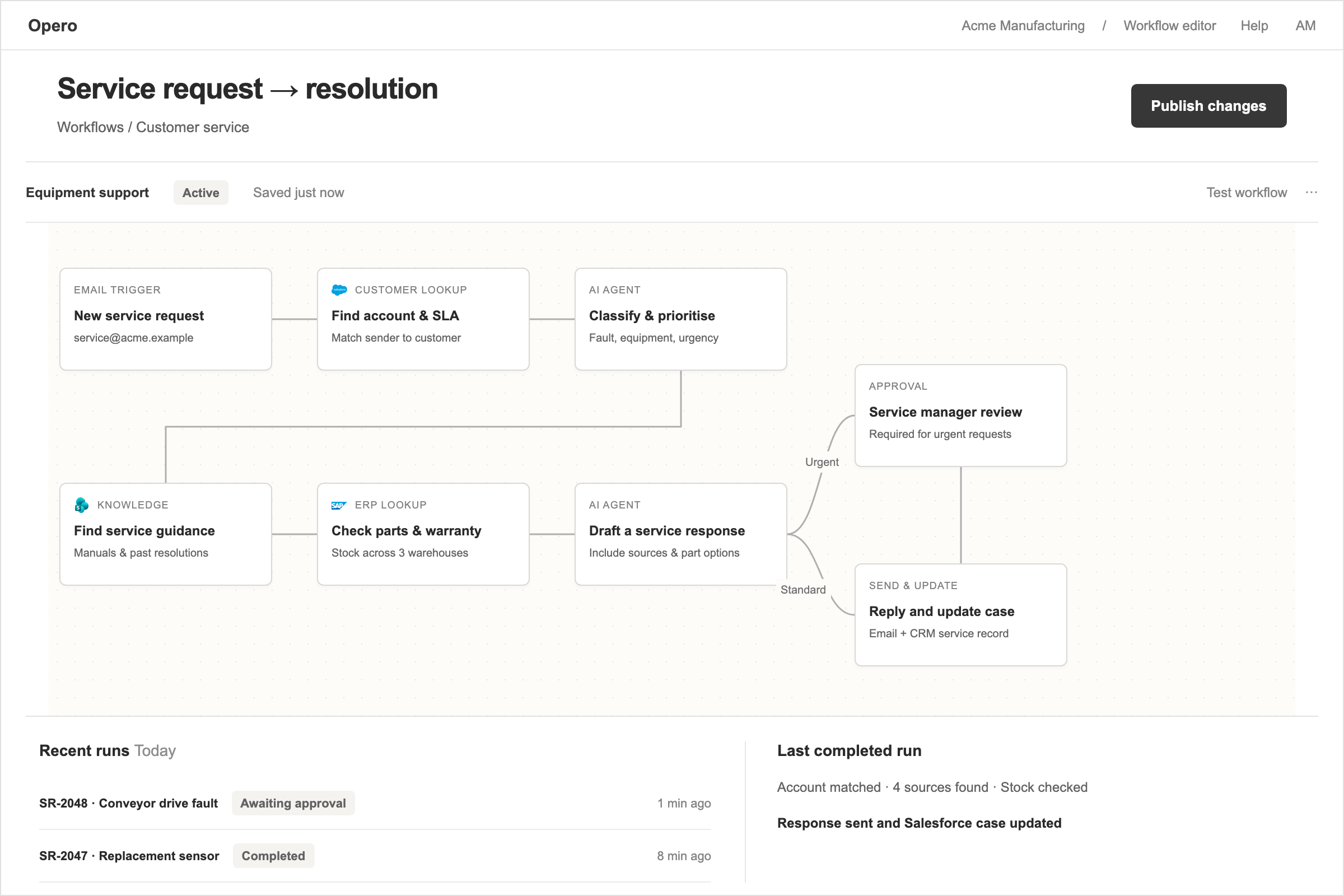
This illustrative service workflow combines customer and parts lookups, relevant documentation, a drafted reply and an approval step for urgent requests.
The canvas
Each step is a block on the board. Every block shows its type, its name and a short note on what it does. Lines join the blocks. The lines show which step comes next.
Some blocks split the path. In the example above, urgent requests go to a service manager for review. Standard requests go straight to a reply.
You pick fields from a list. There is no JSON to write and no YAML to get wrong.
You can undo or redo changes. An incomplete block gets a coloured dot, and Opero will not activate the workflow until every required field is complete.
Choose what each step should do
Opero already talks to the systems your team runs on. CRMs, finance, ticketing, project tools, document stores.
Each action is available as a block. There are more than 100 to choose from.
Blocks are grouped by system. Choose a system, then choose an action such as “check parts and warranty.” Opero shows the fields that action needs and tells you if anything is missing before you run it.
Use AI for unstructured information
Real work is messy. A report is a PDF with a table in it. An email has the order number buried in the fourth paragraph. A form comes in with the fields half filled.
The Agent brain block reads that information and pulls out the fields you need, such as quantities, line items, and dates. The next step receives clean, structured data.
Add approval where it matters
Some steps should never happen on their own. Sending a customer an invoice is one. Committing a purchase order is another.
Add an Approval gate and the workflow pauses until someone approves or rejects it. If they approve, it continues from the same place.
Opero does not allow delete actions in a workflow, so an automated run cannot erase a record.
See what happens when it runs
You can follow every workflow run:
- Every run shows a live list of its steps as they happen.
- A failed run gets a plain-language card that says what went wrong, not a stack trace.
- Opero posts to your Slack channel when a run fails.
- Every run has its own link. Paste it to a colleague and they open the same view you are looking at.
- Run history pages back through everything, not just the last twenty.
Three ways to start a workflow
- On a clock. Pick a time and a timezone. The timezone box fills itself in from your browser, so 7am means 7am where you are.
- From an email. Your workflow gets an address and starts when it receives a message. It ignores automatic out-of-office replies.
- On a system event. A record changes in your CRM, or an order lands in your store, and the workflow starts on its own.
Or ask AI to create a first draft
Tell the chat agent what you want in a sentence. It creates a draft with the blocks already connected. You review it, fill in any missing details, and switch it on.
An example
Here is the workflow shown near the top of this page. A service request arrives by email. Opero finds the customer account and its SLA in the CRM. An AI agent sorts the request by fault, equipment and urgency.
Opero then finds service guidance in the knowledge base. It checks parts and warranty in the ERP. A second AI agent drafts a reply with sources and part options.
An urgent request waits for a service manager to approve it. A standard request gets the reply and a CRM case update at once.
One team sends the request. Another reviews the draft. Nobody has to type the same information twice.
Where to find it
Open Workflows in the left menu. Start with a manual trigger and two blocks, press Run now, and watch the steps light up.
When it works as expected, replace the manual trigger with a schedule.